Split PDF
Extract a page range into a PDF or split every page into separate files.
Your document starts here.
Drop PDF files here, or choose from your device.
100 MB per file · 250 MB per workspace · No uploads
Just the pages you need.
Extract a page range into a PDF or split every page into separate files. PDFapp runs this tool entirely in your browser, so you can work without creating an account or uploading documents.
How to use Split PDF
- Choose your PDF files from your device.
- Review the file order or adjust the available settings.
- Run the tool and download your result. Clear the workspace when you are finished.
Is this tool free?
Yes. All tools in this MVP are free, with no registration or paid tier.
Where are my files processed?
On your device, inside the browser. Documents are never sent to our server. The host may log ordinary requests for website assets.
Which files are supported?
Unencrypted PDFs and, for image conversion, JPG and PNG files. Large or complex documents may exceed your device's memory. Password-protected PDFs, OCR, signatures and PDF forms are outside this MVP's guarantees. Editing can invalidate digital signatures.
Example: extract selected pages from a report
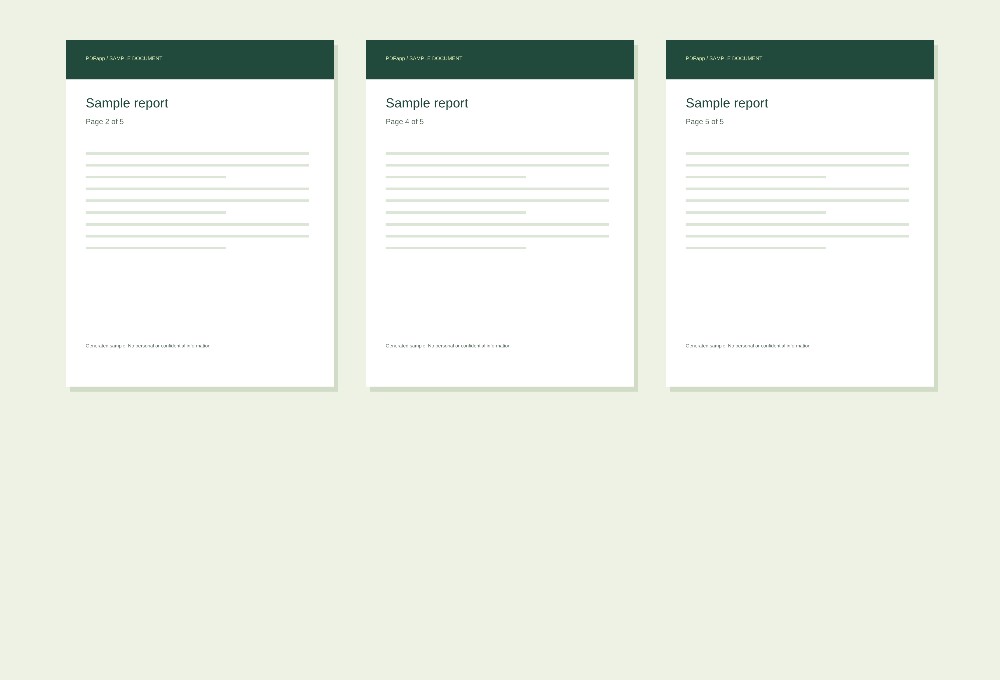
From a 5-page report, keep page 2 and pages 4–5. Enter 2, 4-5 to create one new PDF containing those 3 pages, in that order.
Numbers show page counts or selected page numbers.
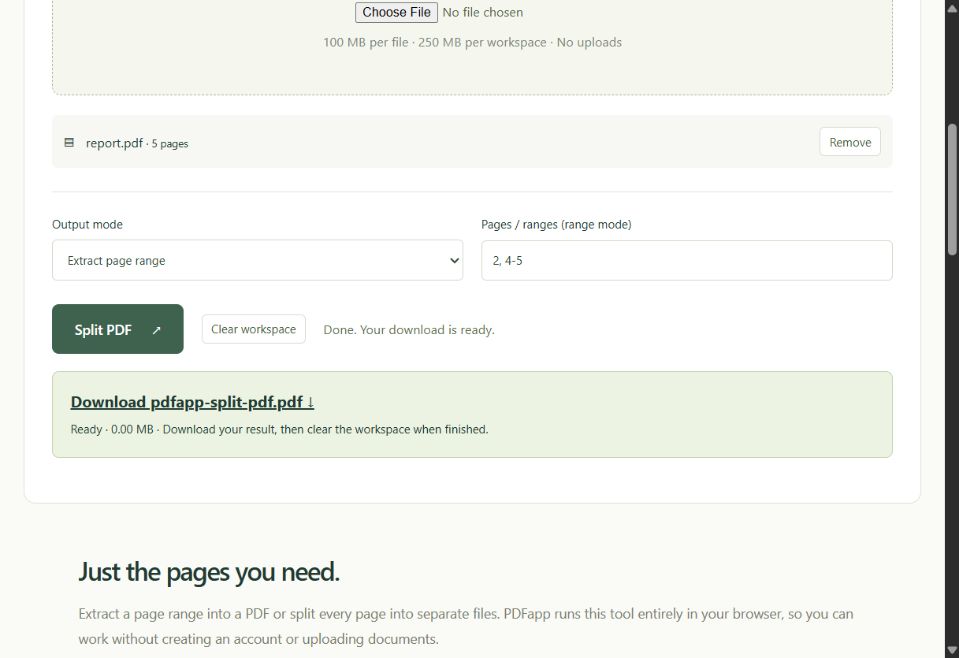
- Add report.pdf and choose Extract page range.
- Replace the range with 2, 4-5. Use commas between selections and a hyphen for an ascending range.
- Choose Split PDF and download the result. To create one file per page instead, choose Every page as a separate PDF (ZIP).
Expected result: one 3-page PDF. In the separate-page mode, a 5-page input produces a ZIP containing 5 PDF files.
View the example in the tool
Questions about this tool
Can I combine individual pages and ranges?
Yes. For example, 1, 3-5 selects pages 1, 3, 4 and 5. Page numbering starts at 1. A range must be ascending and stay within the source document.
Can I extract pages in a different order?
Yes. Enter 5, 1-2 to place page 5 first, followed by pages 1 and 2. Repeating a page number includes that page again.
Does splitting compress the PDF or change the original?
No. Splitting selects pages for a new document and does not intentionally compress them. The original stays unchanged, and the output size depends on the selected pages and shared resources.
Keep working
Merge PDFRotate PDFReorder PDFDelete PDF pagesJPG / PNG to PDFPDF to JPGWatermark PDFPage numbers